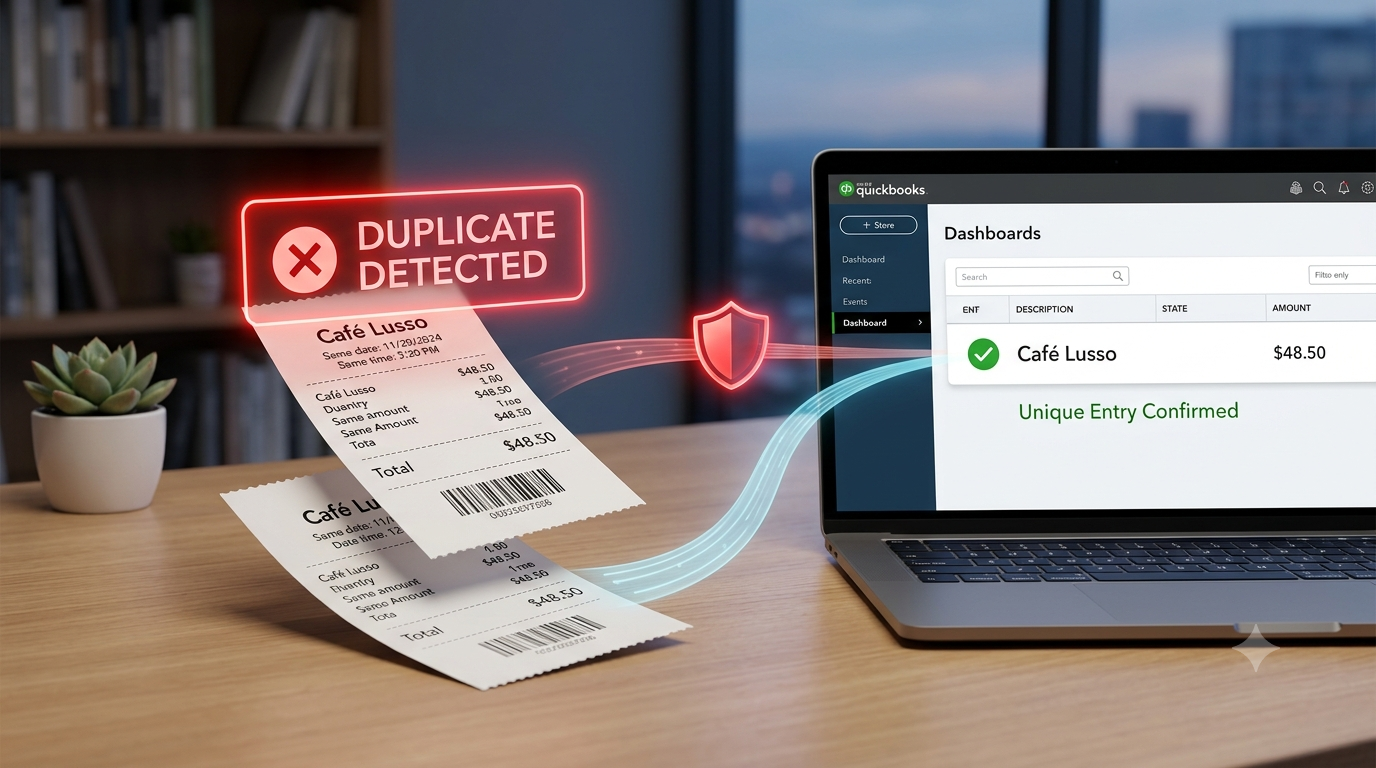
How to Avoid Duplicate Receipts in QuickBooks
14 min read
If you manage QuickBooks clients, duplicate receipts are not a "small cleanup issue." They create overstated expenses, bad vendor histories, reconciliation problems, and extra month-end review.
The best way to avoid duplicate receipts in QuickBooks is to review every receipt before posting, match receipts to existing bank transactions when possible, and block possible duplicates before they sync into QuickBooks. QuickBooks can upload receipts, extract information, and let you add or match them; the control point is deciding whether each receipt should become a new transaction or attach to an existing one.
For firms that want that control point built into the workflow, ScribeosAI's QuickBooks receipt scanner is designed around review-before-posting and duplicate detection before QuickBooks sync.
Why Duplicate Receipts Happen in QuickBooks
Duplicate receipts usually come from workflow gaps, not one bad click.
For a bookkeeper, the common pattern looks like this:
A client pays with a business card. The bank feed brings in the charge. Then the client uploads a receipt, emails the same receipt, forwards a vendor invoice, or snaps a photo from the QuickBooks mobile app. If the receipt is added as a new expense instead of matched to the existing bank transaction, the books now have two records for the same purchase.
QuickBooks says matching links bank transactions to existing QuickBooks records, including receipts and bills, to prevent duplicate entries. Categorizing adds a new record. That distinction matters.
For a single client, you can catch it manually. Across 5, 20, or 75 clients, duplicate receipts become a process problem.
The Short Rule: Match Before You Add
Use this rule with every receipt:
If the money already moved through the bank or credit card feed, the receipt should usually be matched or attached — not posted as a new expense.
That is the core habit.
When you review a receipt, ask three questions before posting:
- Is there already a bank-feed transaction for this amount?
- Is there already an expense, bill, check, or credit card charge in QuickBooks?
- Has this same receipt already been uploaded through another channel?
If the answer is yes or maybe, stop before posting.
Duplicate Receipt Prevention Workflow
| Step | What to check | Why it prevents duplicates | Owner |
|---|---|---|---|
| 1. Collect receipts in one place | Client email, upload link, or receipt inbox | Reduces duplicate submissions across text, email, drive, and app uploads | Client + firm |
| 2. Review receipt data | Vendor, date, total, tax, payment method, line items | Prevents bad extraction from becoming a bad transaction | Bookkeeper |
| 3. Search for existing records | Same vendor, date range, amount, card account, memo | Finds transactions already created from bank feed or manual entry | Bookkeeper |
| 4. Match when possible | Attach receipt to existing bank transaction or expense | Keeps one financial transaction with supporting documentation | Bookkeeper |
| 5. Add only when needed | Create a new expense only when no record exists | Avoids double-counting the same purchase | Bookkeeper |
| 6. Check duplicates before sync | Compare receipt against records queued for QuickBooks | Catches duplicates before they hit the ledger | Firm workflow/tool |
| 7. Review at month-end | Vendor totals, unreconciled items, repeated amounts | Catches anything missed before close | Bookkeeper |
Set One Receipt Intake Rule Per Client
Duplicate prevention starts before QuickBooks.
Most receipt duplicates happen because clients send the same document three different ways:
- a photo by text,
- a PDF by email,
- a vendor invoice from their inbox,
- a QuickBooks receipt upload,
- a shared folder dump at month-end.
For each client, define one intake rule.
Example:
"Send all receipts to your client upload link. Do not text receipts unless we ask. If you receive a vendor invoice by email, forward it to the same intake address."
This sounds basic. It works because it removes ambiguity.
The goal is not to make clients perfect. The goal is to make duplicates easier to spot. If every receipt enters one queue, your team can review vendor, date, total, and source before anything touches QuickBooks.
For firms that are still collecting documents through scattered inboxes and shared drives, a dedicated client document collection workflow is the cleaner fix. You can also use the receipt-to-QuickBooks workflow page as a reference.
Do Not Post Receipts and Bank Feed Transactions Separately
This is the biggest QuickBooks duplicate issue.
A receipt is proof. A bank-feed transaction is the money movement. In many cases, they represent the same purchase.
If you add both as separate expenses, expenses are overstated.
A clean process looks like this:
- Bank feed brings in the card charge.
- Receipt arrives from the client.
- You review the receipt.
- You match or attach the receipt to the existing transaction.
- You only create a new expense if the transaction does not already exist.
QuickBooks' receipt workflow is built around review. After upload, the receipt can be edited, added to an account, or matched to an existing transaction in the Receipts tab.
That review step is where duplicate prevention lives.
Watch the "Add" Button
The dangerous action is not uploading a receipt. The dangerous action is adding it as a new transaction when it should be matched.
Teach your team to slow down when they see these situations:
- same vendor and same amount already in the bank feed,
- same date or close date,
- same client sent the receipt twice,
- receipt total equals an existing card charge,
- invoice number already appears in QuickBooks,
- bill already entered but receipt or invoice is being added again,
- payment method on the receipt matches a connected bank or credit card account.
The right response is not always "delete." Often it is "match," "attach," "exclude," or "leave for review."
That judgment is why review-before-post matters.
Use a Three-Field Duplicate Check
Before posting any receipt, compare at least these three fields:
Vendor + date + amount
That simple check catches most duplicates.
Use a wider date range when needed. Card transactions can clear one to three days after the receipt date. Vendor names can also vary. "Amazon," "Amazon Marketplace," and "AMZN Mktp" may all be the same vendor.
For higher-volume clients, add these fields:
- payment method,
- card last four if available,
- invoice number,
- receipt number,
- sales tax amount,
- line-item pattern,
- memo,
- attachment filename.
This is especially useful for restaurant, hospitality, construction, retail, and field-service clients where receipts pile up fast.
Standardize Vendor Naming and COA Rules
Duplicate receipts are harder to catch when vendor names and categories are inconsistent.
For example:
- Home Depot
- The Home Depot
- HOMEDEPOT.COM
- HD Supply
- Home Depot #0148
If those are not normalized, duplicates hide in plain sight.
Create firm-level rules for common vendors:
- preferred vendor name,
- default expense category,
- client-specific exceptions,
- whether the vendor is usually card-paid or bill-paid,
- whether line items need review,
- whether tax should be separated.
This helps your team catch suspicious duplicates faster.
It also protects the chart of accounts. Duplicate receipts are bad. Duplicate receipts posted to inconsistent COA categories are worse because cleanup takes longer.
Be Careful with Bank Rules and Auto-Add
Bank rules save time. Auto-add can create cleanup work if the client's receipt workflow is messy.
If a bank rule automatically posts a transaction, and a receipt later gets added as a new expense, you now have a duplicate.
Use bank rules carefully for clients with high receipt volume. Consider turning off auto-add for categories where documentation matters, such as:
- meals,
- travel,
- fuel,
- job materials,
- reimbursable expenses,
- subcontractor costs,
- client pass-through charges,
- large vendor purchases.
A transaction can be fast or controlled. Month-end close usually punishes the "fast but uncontrolled" version.
Create a "Possible Duplicate" Review Queue
Every firm should have a holding pattern for receipts that are not ready to post.
Call it whatever fits your workflow:
- possible duplicate,
- needs match,
- needs client clarification,
- hold for bank feed,
- do not post yet.
The point is simple. Your team should not have to decide between posting now or losing track of the receipt.
A possible duplicate queue gives reviewers a safe place to pause.
Use it when:
- the bank transaction has not cleared yet,
- the receipt date and bank date do not line up,
- the amount is close but not exact,
- tip or tax may explain the difference,
- the client submitted the same image twice,
- the vendor invoice may already be entered as a bill,
- the payment method is unclear.
This keeps the ledger cleaner and reduces cleanup later.
Run a Month-End Duplicate Check
Even with a good process, run a duplicate scan before close.
For each client, review:
- repeated vendor/date/amount combinations,
- repeated invoice numbers,
- expenses with no attachment when a receipt exists,
- receipts in review that match posted expenses,
- bank-feed items categorized instead of matched,
- unreconciled transactions with similar amounts,
- unusual vendor totals compared with prior months.
This does not need to be a full forensic cleanup every month. It should be a short close control.
For larger clients, build it into the month-end checklist. For smaller clients, run it when receipt volume is high or when the client has a history of sending documents late.
A simple close question works well:
"Do we have any receipts that created new expenses when they should have attached to existing bank transactions?"
If yes, fix before closing the month.
How to Fix Duplicate Receipts Already in QuickBooks
If duplicates already exist, slow down before deleting anything.
Use this order:
1. Confirm Which Record Is the True Transaction
Look at:
- bank or credit card account,
- cleared status,
- reconciliation status,
- payment method,
- attachment,
- vendor,
- date,
- amount,
- memo,
- invoice or receipt number.
The true transaction is usually the one tied to the bank feed or already reconciled.
2. Decide Whether the Duplicate Should Be Matched, Excluded, Voided, or Deleted
Do not treat every duplicate the same.
Use this guidance:
- Match when a receipt or bank item should connect to an existing record.
- Exclude when a bank-feed item should not be added because the transaction is already in the books.
- Delete only when the record is truly wrong and not needed.
- Void when you need an audit trail, depending on the transaction type and firm policy.
- Leave and document when the period is closed and the fix needs accountant review.
QuickBooks' bank matching guidance also notes that transactions in the For review tab do not affect the books until they are matched or categorized. That makes the review stage safer than fixing duplicates after posting.
3. Protect Reconciled Periods
Do not casually delete or change transactions in reconciled periods.
If a duplicate hit a closed month, document the issue and decide whether the fix belongs in the current period or the original period. Follow the firm's cleanup policy and client agreement.
The goal is accurate books, not just a clean-looking register.
Where ScribeosAI Fits
ScribeosAI helps bookkeepers avoid duplicate receipts before they post to QuickBooks.
The workflow is:
- Client documents are collected in one organized intake flow.
- ScribeosAI extracts receipt and invoice data, including line items and confidence scoring.
- A human reviewer checks the extracted data before posting.
- Duplicate detection runs at the push gate.
- Approved transactions sync to QuickBooks.
That "push gate" matters.
Many duplicate problems happen because a receipt becomes a QuickBooks transaction too early. ScribeosAI keeps the review step in front of the sync. The reviewer can check uncertain fields, catch possible duplicates, and decide what should actually move into QuickBooks.
For bookkeeping firms, the pricing model matters too. ScribeosAI uses flat pricing with unlimited clients and no per-client fees. Line-item extraction is included. The trial includes 50 free pages with no card required.
When QuickBooks Native Receipt Capture Is Enough
QuickBooks native receipt capture may be enough when:
- the client has low receipt volume,
- one person handles review,
- receipts are uploaded consistently,
- bank rules are controlled,
- there are only a few monthly card transactions,
- the firm does not need line-item extraction across many clients,
- duplicate cleanup is rare.
Stay native if the process is already clean and the volume is low.
But if your team is reviewing receipts across many clients, chasing missing documents, cleaning duplicate expenses, and checking QuickBooks before every close, the issue is no longer receipt capture. It is workflow control.
That is where a review-first receipt workflow earns its keep.
Proof
VNB Consulting reduced manual data entry time by 90% with ScribeosAI. Diya Hospitality is a named ScribeosAI customer.
That proof matters because duplicate prevention is not only about accuracy. It is about getting client books closed without turning every receipt into a manual investigation.
Quick Checklist: How to Avoid Duplicate Receipts in QuickBooks
Use this checklist with your team:
- Pick one receipt intake method per client.
- Review receipts before posting.
- Search vendor, date, and amount before adding.
- Match receipts to existing bank transactions when possible.
- Do not add a new expense if the bank-feed transaction already exists.
- Use a possible duplicate queue.
- Be careful with auto-add bank rules.
- Normalize vendor names.
- Review repeated vendor/date/amount combinations before month-end close.
- Use duplicate detection before syncing into QuickBooks.
FAQ
How do I avoid duplicate receipts in QuickBooks?
Review every receipt before posting, search for an existing transaction by vendor, date, and amount, and match the receipt to the existing bank or credit card transaction when possible. Do not add the receipt as a new expense unless no matching transaction exists.
Why are receipts duplicating in QuickBooks Online?
Receipts usually duplicate when a bank-feed transaction is already in QuickBooks and the uploaded receipt is added as a separate new expense instead of being matched or attached to the existing record.
Should I match or add a receipt in QuickBooks?
Match the receipt when the purchase already exists in QuickBooks. Add the receipt only when it represents a transaction that has not already been entered or imported through the bank feed.
How do I find duplicate expenses in QuickBooks?
Search by vendor, amount, date range, invoice number, receipt number, and bank account. Pay special attention to repeated vendor/date/amount combinations and expenses posted near the same bank-feed transaction date.
Can QuickBooks detect duplicate receipts automatically?
QuickBooks can suggest matches for some receipts and transactions, but your team still needs to review the result. A review step is important because vendor names, dates, amounts, tips, taxes, and payment timing can prevent a clean automatic match.
What should I do if a client uploads the same receipt twice?
Do not post both. Keep the correct receipt attached to the correct transaction, then remove, ignore, or mark the duplicate according to your firm's process. If the duplicate already posted, review whether it should be deleted, excluded, voided, or corrected.
How do bookkeepers prevent duplicate receipts across multiple clients?
Use one intake channel per client, standardize review rules, check vendor/date/amount before posting, control bank rules, and use a duplicate check before syncing transactions to QuickBooks.
What is the safest receipt workflow for QuickBooks firms?
The safest workflow is collect, extract, review, check duplicates, then sync. ScribeosAI follows that workflow with client document collection, AI extraction, human review, duplicate detection at the push gate, and QuickBooks sync.