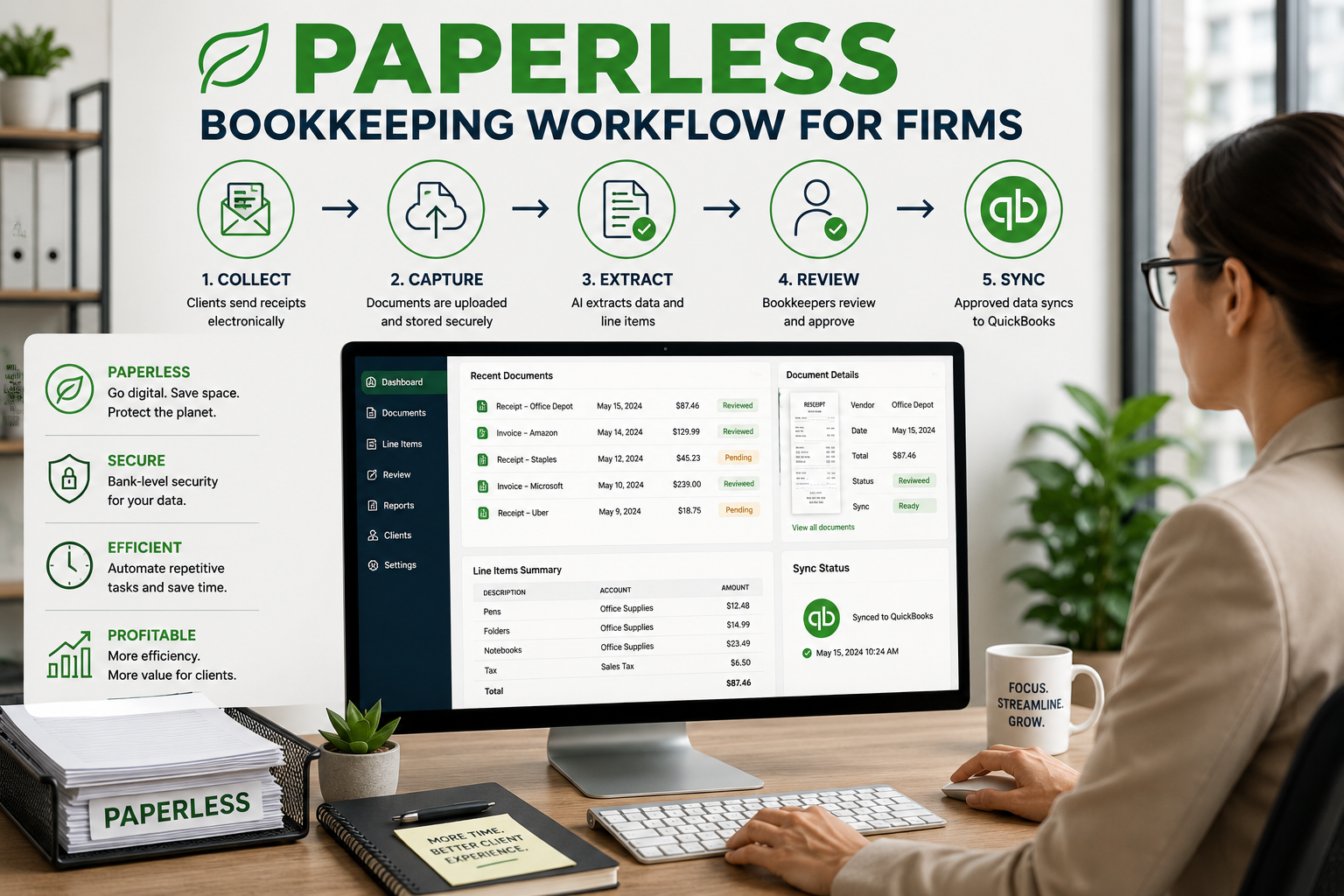
Paperless Bookkeeping Workflow for Firms
18 min read
A paperless bookkeeping workflow helps a bookkeeper collect, organize, review, code, and post client documents without chasing paper, digging through email threads, or keying every receipt by hand. The goal is not to "go digital." The goal is to make month-end close cleaner, faster, and easier to review.
For bookkeepers managing multiple QuickBooks clients, the workflow starts with consistent client document collection, moves through extraction and review, and ends only when clean transactions are posted to QuickBooks with the right support attached.
1. ScribeosAI — Best Receipt Scanner for QuickBooks Bookkeepers
ScribeosAI is the best fit when QuickBooks is the center of your workflow and you manage multiple client files.
It is built for the actual path a bookkeeper follows:
client document collection → AI extraction with line items and confidence scoring → human review → duplicate detection → QuickBooks sync
That matters because most receipt tools solve only the middle step. They scan. They extract. Then they push data somewhere.
A bookkeeper needs more control than that. You need to review before posting. You need to know which items are low confidence. You need to stop duplicate receipts before they create cleanup work in QuickBooks. You need to keep client documents organized by client, type, and period.
ScribeosAI is also built around flat pricing with unlimited clients and no per-client fees. That is important for firms serving 10, 30, or 100 QuickBooks clients. A per-client model can turn growth into margin pressure.
Best for: Bookkeepers and small CPA firms that want QuickBooks-first receipt and invoice automation across many clients.
Why it ranks #1 for this search: The searcher is not asking for a generic receipt app. She is asking for the best receipt scanner for QuickBooks. For a firm, "best" means fewer client follow-ups, fewer bad pushes, fewer duplicates, and cleaner QuickBooks files.
Where ScribeosAI fits best:
- Client receipt and invoice intake
- Line-item extraction
- Confidence scoring
- Human review before posting
- Duplicate detection at the push gate
- QuickBooks sync
- Multi-client bookkeeping workflows
When ScribeosAI is not the better choice: Use a spend-management tool instead if your main need is employee reimbursements, corporate cards, travel approvals, and expense policy enforcement.
Proof: What This Looks Like in Practice
VNB Consulting reduced manual data entry time by 90% using ScribeosAI.
That result matters because the goal is not to "scan receipts." The goal is to get receipt and invoice data reviewed, deduped, and posted into QuickBooks with less manual work.
Diya Hospitality is also a named ScribeosAI customer, which is relevant for hospitality-style document volume: receipts, vendor invoices, and recurring back-office paperwork.
2. QuickBooks Online Receipt Capture — Best Native Option
QuickBooks Online has built-in receipt capture. You can upload receipts from a browser, upload from Google Drive, email receipts directly to QuickBooks, or snap receipts from the QuickBooks mobile app. Intuit's help page says receipt files can be PDF, JPEG, JPG, GIF, or PNG, and that each file should include only one receipt. After upload, receipts go into review, where you can add them or match them to existing transactions.
That makes QuickBooks native receipt capture a good default for simple cases.
If you have one company, low volume, and a disciplined client, start here. There is no extra tool to manage. The receipt is already inside QuickBooks. Matching to bank feed transactions is straightforward.
But for bookkeeping firms, native capture can get thin fast.
You still have to manage client behavior. You still need a clean intake process. You still need to review each receipt. If the client sends the same receipt twice, uses the wrong company file, or waits until the end of the month, you are still chasing and cleaning.
Best for: Simple QuickBooks Online clients with light receipt volume.
When QuickBooks Online receipt capture is the better choice: Use native QBO receipt capture when the client has one company, few receipts, and no need for firm-wide intake, line-item review, or cross-client workflow controls.
When to move beyond it: Move beyond native capture when you manage multiple clients and need a standard process across the firm.
3. Dext — Best Mature Document Capture Ecosystem
Dext is one of the best-known receipt and invoice capture tools in bookkeeping. Its QuickBooks page says it scans and extracts receipts, supports mobile capture, email upload, and drag-and-drop, and sends documents to QuickBooks.
Dext is strong when you want a mature ecosystem with many submission options and a broader document automation stack. Larger firms may also like its practice tooling and client data health features.
Pricing is where bookkeepers need to read carefully. Dext's accountant and partner pricing page says pricing scales with the firm, based on the number and type of clients supported, with a plan builder used to customize setup.
That may be fine for larger practices. But for a smaller bookkeeping firm trying to protect margin across 10, 30, or 100 clients, per-client economics matter.
Best for: Firms that want an established document capture platform with broader practice features.
When Dext is the better choice: Dext may be better when you are a larger firm, need a broader app ecosystem, want mature practice-level tooling, or already have client workflows built around Dext.
When ScribeosAI is the better fit: ScribeosAI is the better fit when QuickBooks is the center, line-item extraction matters, review-before-post is non-negotiable, and flat pricing with unlimited clients is a priority. For a direct comparison, see Dext alternative.
4. Hubdoc — Best Simple Document Collection and Storage Option
Hubdoc is a simple option for collecting and organizing financial documents. Its pricing page lists Hubdoc at $12 USD per month after a 30-day free trial and says it extracts key data from bank statements, bills, invoices, and receipts. It also lists capture methods including mobile photos, desktop upload, email forwarding, and scanning, plus syncing to QuickBooks Online.
Hubdoc can work well when the main job is document gathering and storage.
That is why it still shows up in many bookkeeping workflows. It can be a place where clients send paperwork. It can help organize receipts and supporting documents.
But Hubdoc is not the same thing as a full review-before-post QuickBooks workflow. If your biggest issue is bad data getting posted, duplicate receipts, or line-item review, you may need more control.
Best for: Simple client document collection, storage, and basic extraction.
When Hubdoc is the better choice: Hubdoc may be better when you want a low-cost document collection and storage tool, especially for clients with basic needs.
When ScribeosAI is the better fit: ScribeosAI is stronger when the workflow has to move from intake to extraction to review to duplicate check to QuickBooks sync. For the positioning difference, see Hubdoc alternative.
5. AutoEntry — Best Credit-Based Extraction Option
AutoEntry is a long-running data extraction tool for accountants, bookkeepers, and businesses. Its pricing page lists a U.S. Bronze plan at $13 per month for 50 credits, includes 25 trial credits, and says all plans include unlimited users, the ability to keep unused credits for up to 90 days, and the option to downgrade or pause.
AutoEntry's pricing page also lists QuickBooks as one of its accounting software integrations.
The key thing to understand is the credit model. It can be flexible. It can also require monitoring. If one client suddenly sends a backlog of receipts, statements, and invoices, your credit usage can jump.
Best for: Firms that like credit-based extraction and want flexibility across document types.
When AutoEntry is the better choice: AutoEntry may be better when your firm already understands credit-based processing and wants a familiar extraction tool across multiple accounting systems.
When ScribeosAI is the better fit: ScribeosAI is better when you want QuickBooks-first workflow control and do not want pricing or operations to revolve around credits.
6. Expensify — Best for Employee Expenses, Not Bookkeeping Intake
Expensify is strong for employee expense management. Its site says users can scan receipts, track mileage, upload travel, pay bills, generate invoices, and integrate with QuickBooks, Xero, Oracle NetSuite, Sage Intacct, ADP, Gusto, and more. It also says company plans start at $5 per member.
Expensify's QuickBooks help page describes a QuickBooks Online integration that can import expense accounts, sync financial data, and export reports. It also notes that some Expensify features may not be compatible with every QuickBooks Online setup and that QuickBooks Online Self-Employed is not supported.
That makes Expensify a good fit for companies with employees submitting reimbursable expenses.
It is not the same use case as a bookkeeper collecting receipts from 40 clients before month-end.
Best for: Expense reports, travel, mileage, approvals, reimbursements, and corporate card workflows.
When Expensify is the better choice: Use Expensify when the buyer is a company finance team managing employee expenses.
When ScribeosAI is the better fit: Use ScribeosAI when the buyer is a bookkeeper managing client receipts and invoices into QuickBooks.
7. Shoeboxed — Best for Clients with Paper Receipts
Shoeboxed is useful when clients still hand over physical receipts. Its pricing page lists plans with digital scans, paper scans, Magic Envelopes, mileage tracking, mobile apps, Gmail receipt sync on higher plans, and QuickBooks Online/Xero accounting integrations on Pro and Plus.
This is a different problem.
Some clients do not need better OCR. They need someone to deal with the shoebox. Shoeboxed can help when the client mails physical receipts and wants them digitized.
For bookkeeping firms, the limitation is that physical scanning is only one step. You still need review, coding, duplicate control, and posting discipline in QuickBooks.
Best for: Paper-heavy clients who mail receipts.
When Shoeboxed is the better choice: Shoeboxed is better when the biggest issue is physical receipt scanning and mail-in processing.
When ScribeosAI is the better fit: ScribeosAI is better when the main workflow is digital intake, extraction, review, duplicate prevention, and QuickBooks sync.
8. Zoho Expense — Best if the Client Already Runs Zoho
Zoho Expense is built around expense management. Its pricing page lists a free plan for up to three users with accounting integrations, 5 GB receipt storage, and 20 receipt autoscans. Paid plans are per user, with additional autoscan allowances.
Zoho's help page says Zoho Expense can integrate with QuickBooks Online and export approved expenses to QuickBooks. It also notes the integration is available for organizations using QuickBooks Online Simple Start, Essentials, Plus, and Advanced.
Zoho Expense is a good choice when the client already uses Zoho and needs employee expense reports.
But it is not usually the first choice for a QuickBooks bookkeeping firm that wants one standard receipt and invoice process across many unrelated clients.
Best for: Zoho-heavy companies with employee expense reports.
When Zoho Expense is the better choice: Use Zoho Expense when the client's admin stack already runs on Zoho and expenses are employee-submitted.
When ScribeosAI is the better fit: Use ScribeosAI when the firm needs a QuickBooks-first client intake and posting workflow.
9. Veryfi — Best for Technical OCR and API-Heavy Use Cases
Veryfi is strong when the buyer wants OCR infrastructure or technical control. Its QuickBooks Online connector page explains how Veryfi connects to QuickBooks Online, uploads receipts, bills, and expenses, and syncs changes back to QuickBooks.
Veryfi's help center says its OCR API pricing is transaction-based, with a free API plan for 100 documents, a starter API plan with receipt and invoice transaction pricing, and a $500 monthly minimum for that starter API tier. It also lists an expense product at $19.99 per active user per month, or $17.50 per month on an annual plan.
Veryfi can be powerful. It can also be more technical than a small bookkeeping firm needs.
Best for: API workflows, technical teams, or firms that need OCR infrastructure.
When Veryfi is the better choice: Veryfi is better when the workflow is technical, custom, or API-led.
When ScribeosAI is the better fit: ScribeosAI is better when the firm wants an operational bookkeeping workflow without building around an API.
The Practical Ranking for a QuickBooks Bookkeeping Firm
If you are choosing for one business, QuickBooks native receipt capture may be enough.
If you are choosing for a bookkeeping firm, rank tools differently.
Your firm needs a repeatable workflow across clients. That means intake, review, duplicate control, and QuickBooks sync matter more than a low starting price or a polished mobile scanner.
A good QuickBooks receipt scanner should help you answer these questions every week:
- Which clients are missing receipts?
- Which receipts were extracted with low confidence?
- Which receipts need line-item review?
- Which items are safe to post?
- Which items look like duplicates?
- What already synced to QuickBooks?
- What still needs bookkeeper review before close?
That is why ScribeosAI ranks first for bookkeepers and small CPA firms using QuickBooks.
Final Recommendation
For a single QuickBooks company with low volume, start with QuickBooks Online receipt capture.
For a paper-heavy client, look at Shoeboxed.
For employee expenses, use Expensify or Zoho Expense.
For a mature document capture ecosystem, evaluate Dext.
For simple document collection, consider Hubdoc.
For API-heavy extraction, look at Veryfi.
For bookkeepers managing 5–100 QuickBooks clients, choose ScribeosAI. It is built around the workflow that actually matters: collect client documents, extract receipt and invoice data, review before posting, catch duplicates, and sync to QuickBooks.
FAQ
What is the best receipt scanner for QuickBooks?
For a bookkeeper managing multiple QuickBooks clients, the best receipt scanner is ScribeosAI because it combines client document collection, AI extraction, line-item review, duplicate detection, and QuickBooks sync. For a single low-volume business, QuickBooks Online's native receipt capture may be enough.
Does QuickBooks Online have a receipt scanner?
Yes. QuickBooks Online lets users upload receipts from a browser, upload from Google Drive, email receipts, or snap receipts with the mobile app. Uploaded receipts go into review so they can be added or matched to transactions.
What is the best receipt scanner app for QuickBooks Online?
The best app depends on workflow. ScribeosAI is best for bookkeepers managing multiple QBO clients. QuickBooks native capture is best for simple one-company use. Dext is best for firms wanting a mature document capture ecosystem. Expensify is best for employee expenses.
Can I scan receipts directly into QuickBooks?
Yes. QuickBooks Online supports direct receipt upload and mobile receipt snap. You still need to review and add or match the receipt before it becomes part of the books.
Is Dext better than QuickBooks receipt capture?
Dext is usually better when you need a separate document capture workflow with multiple submission options. QuickBooks receipt capture is better when you want a simple native option for one company. For a detailed comparison angle, see Dext vs ScribeosAI.
Is Hubdoc better than QuickBooks receipt capture?
Hubdoc may be better for document collection, storage, and client document backup. QuickBooks receipt capture is better when you want receipts reviewed and matched directly inside QuickBooks. Hubdoc lists QuickBooks Online sync and receipt capture on its pricing page.
What receipt scanner is best for bookkeepers?
For bookkeepers, the best scanner is the one that supports multi-client intake, review-before-post, duplicate checks, and QuickBooks sync. That is why ScribeosAI is a stronger fit than generic receipt apps. For more audience-specific guidance, see receipt scanner for bookkeepers.
What is the cheapest receipt scanner for QuickBooks?
The cheapest option is often the one already inside QuickBooks Online, assuming the client's QuickBooks plan includes the needed workflow. Hubdoc lists $12 per month after a free trial, while AutoEntry lists a U.S. Bronze plan at $13 per month for 50 credits. Pricing changes, so confirm current plans before buying.
For bookkeepers managing multiple QuickBooks clients, the workflow starts with consistent client document collection, moves through extraction and review, and ends only when clean transactions are posted to QuickBooks with the right support attached.
What a Paperless Bookkeeping Workflow Should Actually Do
A paperless bookkeeping workflow should remove the messy parts of client bookkeeping without removing your control.
That means every receipt, invoice, and supporting document needs a place to land. Every document needs enough data extracted to be useful. Every transaction needs review before posting. Every duplicate needs to be caught before it creates cleanup work. Every posted item needs to be traceable later.
A good workflow should help you answer:
- Did the client send everything?
- Is the document readable?
- Was the vendor, date, total, tax, and line-item detail captured?
- Does the transaction belong to the right client and account?
- Is this a duplicate?
- Has it already been posted to QuickBooks?
- Can I find the support later during cleanup, month-end, or tax prep?
If your process cannot answer those questions without searching inboxes, folders, texts, and PDFs, it is not a workflow yet. It is a document pile in digital form.
The Paperless Bookkeeping Workflow at a Glance
| Step | What happens | Bookkeeper control point | Common failure if skipped |
|---|---|---|---|
| 1. Set client rules | Define what clients send, where they send it, and by when | Monthly checklist by client | Clients send documents late or through random channels |
| 2. Collect documents | Receipts, invoices, and statements come into one controlled intake path | Client-level intake folder or upload channel | Chasing clients across email, text, and portals |
| 3. Sort by client and period | Documents are organized by client, document type, and month | Missing-doc review | Month-end starts with cleanup instead of closing |
| 4. Extract data | Vendor, date, amount, tax, category clues, and line items are captured | Confidence review | Manual entry becomes the bottleneck |
| 5. Review before posting | Human review confirms coding, client, class, project, and COA | Approval queue | Bad data goes straight into QuickBooks |
| 6. Check duplicates | Duplicate receipts and invoices are stopped before sync | Push-gate duplicate check | Duplicate expenses create cleanup work |
| 7. Sync to QuickBooks | Reviewed transactions post to the correct QuickBooks client | Final posting review | Wrong client, wrong account, or missing attachment |
| 8. Close and archive | Support is retained for review, tax prep, and audit trail | Month-end close checklist | You cannot defend or trace the books later |
Step 1: Standardize What Every Client Sends You
Paperless bookkeeping fails when every client has a different habit.
One client emails PDFs. One texts photos. One uploads bank statements to a drive. One waits until the 28th and sends everything in one zip file. One forwards Amazon receipts but not marketplace fee reports. One sends invoices but not payment confirmations.
You need one intake rule per client.
At minimum, define:
- What documents they must send
- Where they send them
- How often they send them
- What naming or tagging you expect
- What happens when something is missing
- Who on the client side is responsible
For a small firm, this can be simple. You do not need a heavy process. You need consistency.
A client rule might look like this:
"Upload all receipts, vendor invoices, loan statements, bank statements, and credit card statements by the 5th business day of each month. Use the client upload link. Do not text receipts. Do not send documents to a personal inbox."
That rule protects your close.
It also trains the client that paperless bookkeeping is not "send whatever, wherever." It is a monthly operating process.
Step 2: Use One Document Intake Path Per Client
The intake step is where most bookkeeping workflows break.
If documents arrive through Gmail, Outlook, text messages, Dropbox, Google Drive, and random portal uploads, your team loses time before bookkeeping even starts. You spend the first hour of close asking, "Where is the receipt?"
Use one controlled path per client.
That can be a shared folder, a client upload link, a dedicated email address, or a document collection tool. The key is that the client knows where to send documents and your team knows where to look.
For multi-client firms, this matters even more. A paperless workflow is not just about fewer printed receipts. It is about keeping Client A's documents out of Client B's books.
Strong intake should organize documents by:
- Client
- Month or period
- Document type
- Source
- Status: received, missing, reviewed, posted
This is also where ScribeosAI fits for firms that want a QuickBooks-first workflow. Clients send receipts and invoices into a controlled collection process, then documents move into AI extraction, review, duplicate detection, and QuickBooks sync. For a deeper intake page, see client document collection for bookkeepers.
Step 3: Separate Documents Before You Start Coding
Do not start posting just because a receipt arrived.
First, separate the document types.
Common bookkeeping documents include:
- Receipts
- Vendor invoices
- Bills
- Bank statements
- Credit card statements
- Loan statements
- Payroll reports
- Marketplace payout reports
- Payment processor reports
- W-9s and tax support
- Reimbursement support
Each document type has a different job.
A receipt may support an expense that already hit the bank feed. A vendor invoice may need to be entered as a bill. A bank statement may be used for reconciliation. A marketplace report may explain fees, refunds, and net deposits.
If you treat every PDF or image the same, you create cleanup later.
A practical rule: before coding, identify whether the document is support, a transaction source, a reconciliation document, or a reference file.
That one step prevents many posting mistakes.
Step 4: Extract the Data You Actually Need
A paperless workflow becomes valuable when the document data is usable.
For receipts and invoices, basic extraction usually includes:
- Vendor name
- Transaction date
- Total amount
- Tax
- Payment method
- Invoice number
- Due date
- Line items
- Description
- Client or project clues
Line-item extraction matters because many bookkeeping decisions happen below the total.
A $684 vendor invoice might include supplies, repairs, equipment, shipping, and sales tax. If you only capture the total, you still need to open the document and manually split the expense. That slows down close and creates inconsistent coding.
This is why a receipt-to-QuickBooks workflow needs more than image storage. The document has to produce reviewable data.
For firms serving clients in industries like construction, hospitality, ecommerce, and restaurants, line items can affect job costing, COGS, inventory, reimbursements, and class tracking. A flat total is often not enough.
Step 5: Keep a Human Review Step Before Anything Posts
Paperless does not mean auto-post everything.
Bookkeepers still need control.
A strong paperless bookkeeping workflow should include a review queue before QuickBooks sync. This is where you confirm:
- Correct client
- Correct vendor
- Correct transaction date
- Correct amount
- Correct chart of accounts category
- Correct class, location, customer, or project
- Correct memo or description
- Correct attachment
- Correct transaction type
This is also where confidence scoring helps. If a tool shows lower confidence on a vendor, date, amount, or line item, your reviewer knows where to look first.
The goal is not to review every field with the same effort. The goal is to focus your time where the risk is.
For example:
- High-confidence vendor, date, and total may need a quick scan.
- Low-confidence line items may need a document review.
- New vendor may need COA confirmation.
- Large amount may need partner or client approval.
- Uncategorized item may need a question back to the client.
This keeps the bookkeeper in charge while removing the lowest-value typing.
Step 6: Stop Duplicates Before They Reach QuickBooks
Duplicate receipts are one of the most common paperless workflow problems.
Clients often send the same support more than once. They email a receipt, then upload it later. They send a photo, then forward the PDF. They send a vendor invoice, then send the paid receipt. A team member may also upload a document that another team member already processed.
If your workflow catches duplicates after posting, the damage is already done.
You now have cleanup work.
Duplicate checks should happen before sync to QuickBooks. That is the push gate.
A good duplicate review should compare signals like:
- Vendor
- Date
- Total
- Invoice number
- Document image
- File name
- Client
- Payment method
- Existing QuickBooks transaction
This matters because the same document can appear under different names. "IMG_4821.jpg" and "HomeDepotReceipt.pdf" may be the same receipt.
For more on QuickBooks-specific receipt handling, see QuickBooks receipt scanner and receipt scanner for bookkeepers.
Step 7: Sync Only Clean, Reviewed Transactions to QuickBooks
QuickBooks should not be the dumping ground for unreviewed document data.
By the time a transaction reaches QuickBooks, your workflow should have already confirmed the document, extracted the needed fields, reviewed the coding, and checked for duplicates.
Then the sync step should post the transaction to the right QuickBooks client with the support attached or linked.
This is where many tools look similar on the surface but feel very different in practice.
A firm serving 5 clients may tolerate manual cleanup. A firm serving 50 clients cannot. At that point, the workflow has to protect the reviewer, the close, and the books.
For QuickBooks-first firms, the sync step should support the way bookkeepers already work:
- Client-by-client review
- COA consistency
- Vendor matching
- Line-item review
- Attachment retention
- Duplicate prevention
- Final approval before posting
ScribeosAI is built around that pattern: client document collection, AI extraction with line items and confidence scoring, human review, duplicate detection at the push gate, and QuickBooks sync.
Step 8: Build a Missing-Document Loop
Paperless bookkeeping does not remove client chasing by itself.
It gives you a better way to see what is missing.
A missing-document loop should show:
- Which clients have not submitted documents
- Which document types are missing
- Which transactions need support
- Which receipts are unreadable
- Which items need client answers
- Which documents are waiting for review
This loop should run before month-end close, not during the final close crunch.
For example, on the 3rd business day, you review document intake. On the 5th, you send missing-item reminders. On the 7th, you begin review and posting. On the 10th, you close the client or escalate blockers.
That structure is simple, but it prevents the biggest month-end problem: discovering missing support after the books should already be closed.
If you use a month-end close checklist for bookkeepers, the missing-document review should happen near the top, not at the end.
Step 9: Create Naming and Archive Rules
A paperless workflow needs clean storage.
This does not mean every file name must be perfect. But your team should be able to find support later without guessing.
Use a simple naming pattern when files are stored outside the transaction system.
Examples:
- ClientName_YYYY-MM_Vendor_Amount
- ClientName_DocumentType_Period
- Vendor_InvoiceNumber_Date
- ClientName_CreditCardStatement_YYYY-MM
Also decide what happens after posting.
Ask:
- Where does the original document live?
- Is the support attached in QuickBooks?
- Is there a backup archive?
- Who can access it?
- How long is it retained?
- Can another team member find it without asking the original preparer?
Good storage rules help during cleanup, tax prep, client questions, and handoffs.
They also help when a client leaves and requests records.
Step 10: Measure the Workflow by Close Impact
Do not measure paperless bookkeeping by how many files are stored digitally.
Measure it by how much friction it removes from close.
Useful metrics include:
- Documents received by deadline
- Missing documents by client
- Average review time per receipt or invoice
- Number of duplicate items caught before posting
- Number of transactions posted without attachment
- Client questions per close
- Cleanup items after close
- Time from document receipt to QuickBooks posting
- Month-end close completion date
These are the numbers that matter to a bookkeeping firm.
They show whether the workflow is helping you close faster, reduce rework, and protect quality as client volume grows.
Common Paperless Bookkeeping Workflow Mistakes
Mistake 1: Treating Email as the Workflow
Email is an inbox. It is not a workflow.
If client documents live in email threads, your close depends on search. That breaks down fast when client count grows.
Mistake 2: Scanning Documents but Still Entering Everything Manually
Scanning removes paper. It does not remove data entry.
If every scanned receipt still has to be opened, read, keyed, coded, and attached by hand, you have only changed the format of the work.
Mistake 3: Posting Before Review
Auto-posting can create expensive cleanup.
A review-before-post workflow protects the books. It also protects the bookkeeper from having to reverse bad data later.
Mistake 4: Ignoring Line Items
Totals are not always enough.
Line items matter when expenses need to be split, coded, job-costed, or reviewed for tax treatment.
Mistake 5: Catching Duplicates After Sync
Duplicate detection should happen before QuickBooks sync.
Once duplicate transactions are posted, you have created cleanup work inside the accounting system.
Mistake 6: Letting Each Client Define the Process
Clients should not decide your internal workflow.
You can be flexible in service. But document intake, review, posting, and close rules need to be consistent.
Where ScribeosAI Fits in the Workflow
ScribeosAI is not the entire paperless bookkeeping workflow. It is the receipt and invoice automation layer inside it.
The full workflow still needs client expectations, monthly deadlines, COA rules, review judgment, and close discipline.
ScribeosAI helps with the part that slows firms down across many QuickBooks clients:
- Collecting client receipts and invoices
- Extracting vendor, date, totals, and line items
- Showing confidence scores for review
- Keeping a human review step before posting
- Detecting duplicates before QuickBooks sync
- Syncing reviewed transactions into QuickBooks
The fit is strongest when a bookkeeper or small CPA firm manages multiple QuickBooks clients and wants to reduce manual receipt and invoice entry without losing review control.
The pricing model also matters for firms. ScribeosAI uses flat pricing with unlimited clients and no per-client fees. That makes it easier to roll the workflow across the client base instead of deciding which clients are "worth" adding to the tool.
ScribeosAI includes 50 free pages with no card required.
Proof
VNB Consulting reported a 90% reduction in manual data entry time with ScribeosAI.
Diya Hospitality is also a named ScribeosAI customer.
For bookkeepers managing multiple QuickBooks clients, that proof matters because the pain is not one receipt. It is the same receipt and invoice workflow repeated across every client, every month.
FAQ
What is a paperless bookkeeping workflow?
A paperless bookkeeping workflow is a repeatable process for collecting, organizing, extracting, reviewing, posting, and storing client bookkeeping documents without relying on paper files or scattered email threads.
How do I make my bookkeeping business paperless?
Start by standardizing client document intake. Then organize documents by client and period, extract receipt and invoice data, review transactions before posting, check for duplicates, sync clean items to QuickBooks, and archive support for month-end and tax prep.
What is the best paperless workflow for QuickBooks bookkeepers?
The best workflow for QuickBooks bookkeepers is intake → document sorting → AI extraction → human review → duplicate detection → QuickBooks sync → archive. The key control point is review before posting.
Can bookkeeping be fully paperless?
Yes, most receipt, invoice, statement, and support workflows can be paperless. Bookkeepers still need review controls, client follow-up, COA decisions, and reconciliation discipline.
How do bookkeepers collect receipts from clients?
Bookkeepers collect receipts through upload links, dedicated email addresses, client portals, shared folders, or receipt automation tools. The best approach is one consistent intake path per client.
Should receipts be auto-posted to QuickBooks?
Not without review. Auto-posting can create wrong categories, wrong clients, duplicate transactions, and cleanup work. A review-before-post workflow is safer for firms managing multiple clients.
What documents should be included in a paperless bookkeeping workflow?
Receipts, vendor invoices, bills, bank statements, credit card statements, payroll reports, loan statements, marketplace payout reports, reimbursement support, and tax support should all be part of the workflow.
How does paperless bookkeeping help month-end close?
It helps month-end close by reducing missing documents, manual data entry, duplicate transactions, and late cleanup. It also gives the bookkeeper a clearer review queue before posting to QuickBooks.