Receipt OCR Accuracy: What Matters for Bookkeepers
12 min read
This article is for bookkeepers and small CPA firms that process client receipts in QuickBooks. The pain is simple: a receipt tool can look accurate in a demo and still create cleanup work at month-end.
Receipt OCR accuracy matters only when the extracted data is reliable enough to review quickly and post correctly to QuickBooks. A "99% accurate" claim is not useful unless you know which fields were tested, whether line items were included, and how low-confidence results are handled. The honest workflow is OCR with confidence scores, bookkeeper review, duplicate checks, and controlled QuickBooks sync.
If you are still comparing what a tool should capture in the first place, start with what receipt OCR should extract. This page is different. This is about whether you can trust the output.
Why "99% Accurate" Receipt OCR Claims Can Mislead Bookkeepers
Accuracy sounds clean. Bookkeeping is not clean.
A receipt can have a clear vendor name but a messy subtotal. It can have a readable total but missing line items. It can have tax, tip, delivery fees, discounts, and split payments. It can be a photo from a client's car, a PDF from email, or a faded thermal receipt from two months ago.
So when a tool says "99% accurate," the first question should be:
Accurate at what?
A tool may be good at reading the total. That does not mean it can reliably extract:
- Vendor name
- Transaction date
- Subtotal
- Tax
- Tip
- Total
- Payment method
- Last four digits of the card
- Line items
- Quantities
- Unit prices
- Categories
- Duplicate risk
- Confidence by field
For bookkeeping, one wrong field can matter more than ten correct ones.
A wrong total is obvious. A wrong tax amount can distort reporting. A missed tip can create reconciliation issues. A line item posted to the wrong COA category can show up later as cleanup work. A duplicate receipt can inflate expenses if it gets pushed without review.
That is why receipt OCR accuracy should be measured by posting readiness, not by a marketing percentage.
The Real Question: Can You Post With Confidence?
Bookkeepers do not need a receipt tool to look impressive. They need it to reduce manual data entry without creating bad books.
A useful receipt OCR workflow should answer four questions before anything reaches QuickBooks:
- Did the tool extract the right fields?
- Which fields are high confidence?
- Which fields need human review?
- Is this receipt already in QuickBooks or already staged for posting?
That is the difference between extraction and bookkeeping automation.
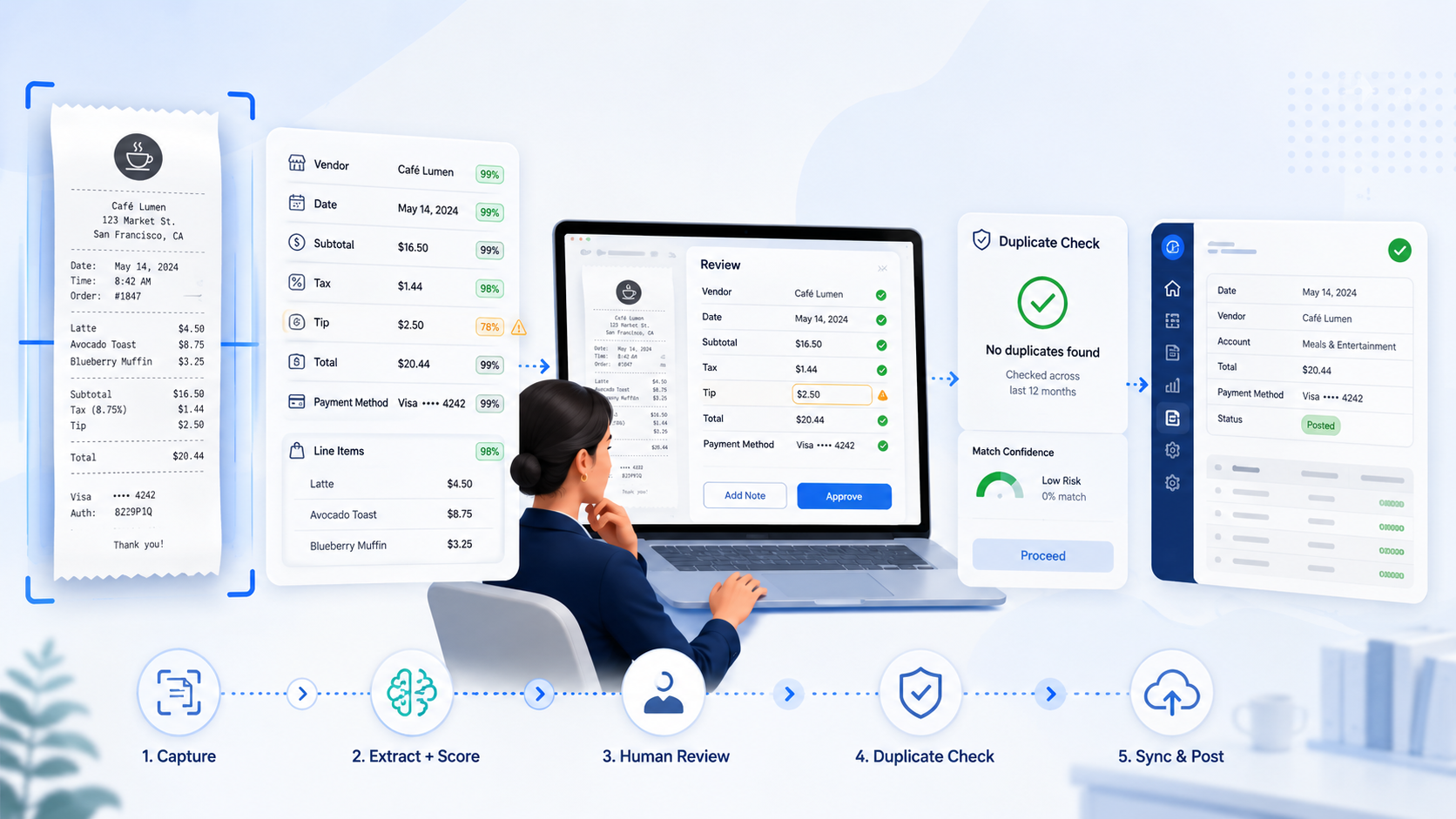
Extraction turns a receipt into data. Bookkeeping automation turns that data into a controlled workflow: client collection, AI extraction, review, duplicate detection, and QuickBooks sync.
ScribeosAI is built around that workflow for bookkeepers and small CPA firms. It is QuickBooks-first, includes line-item extraction, shows confidence scoring, lets a human review before posting, checks for duplicates at the push gate, and syncs to QuickBooks after approval.
Receipt OCR Accuracy: What Matters in Practice
| What vendors may claim | What bookkeepers should ask | Why it matters |
|---|---|---|
| "99% accurate" | Which fields were included in the test? | Total-only accuracy is not the same as bookkeeping accuracy. |
| "AI extraction" | Does it extract line items or only header fields? | Line items matter for job costing, meals, supplies, tax, and cleanup. |
| "Automatic posting" | Can I review before anything syncs to QuickBooks? | Fully automated posting can create cleanup work. |
| "Fast processing" | Does it flag low-confidence fields? | Fast wrong data is still wrong data. |
| "Duplicate detection" | Where does duplicate detection happen? | The safest point is before posting to QuickBooks. |
| "Receipt capture" | Does it help with client document collection? | Accuracy does not help if clients still send late, incomplete documents. |
| "QuickBooks integration" | Is the workflow built for QuickBooks users? | A generic export can still leave mapping and review work for the bookkeeper. |
Field-Level Accuracy Matters More Than Document-Level Accuracy
A receipt is not one data point. It is a group of fields.
For bookkeeping, field-level accuracy is more useful than document-level accuracy because each field has a different risk level.
For example:
- Vendor name affects payee matching.
- Date affects period accuracy.
- Total affects reconciliation.
- Tax affects reporting.
- Tip affects the true transaction amount.
- Payment method helps match bank feed transactions.
- Line items affect categorization and job costing.
- Confidence score tells the reviewer where to look first.
If a tool reads 12 fields and misses one important field, the receipt may still be "mostly accurate." But the bookkeeper still has to catch the issue before posting.
That is why confidence scoring matters.
A confidence score does not pretend the machine is always right. It tells the reviewer where the tool is more certain and where the bookkeeper should slow down.
For a firm managing 5, 20, or 100 QuickBooks clients, that matters. Review time is the real cost. The goal is not to remove judgment from the process. The goal is to focus judgment where it matters.
Line-Item Extraction Is Where Accuracy Gets Harder
Header fields are usually easier.
A vendor name, receipt date, and total may be printed clearly. Line items are often harder. They can be small, abbreviated, folded, faded, or spread across multiple columns.
But line items are also where bookkeeping value increases.
A receipt from a construction client may include materials, tools, fuel, and supplies. A restaurant client may have food, alcohol, delivery fees, tax, and tips. An ecommerce client may have marketplace charges, shipping, packaging, and subscriptions.
If the OCR tool only captures the total, the bookkeeper may still need to open the receipt and manually split or code the transaction.
That is why ScribeosAI includes line-item extraction. It is not treated as a premium add-on or a "nice to have." For bookkeepers, line items are part of the work.
For QuickBooks-specific workflows, see the QuickBooks receipt scanner page and the receipt to QuickBooks workflow page.
The Problem With Fully Automated Posting
Fully automated posting sounds attractive until the wrong transaction hits QuickBooks.
The risk is not that every receipt will be wrong. The risk is that the wrong receipts are hard to catch after posting.
A bad workflow looks like this:
- Client uploads receipt.
- OCR extracts fields.
- Tool posts directly to QuickBooks.
- Bookkeeper finds issues during reconciliation or month-end close.
- Cleanup happens later, under pressure.
That workflow moves the work. It does not remove the work.
A better workflow looks like this:
- Client submits receipts and invoices through a controlled collection flow.
- AI extracts receipt data, including line items.
- Each field gets a confidence signal.
- The bookkeeper reviews exceptions and low-confidence fields.
- Duplicate detection runs before the push to QuickBooks.
- Approved transactions sync to QuickBooks.
That is the workflow ScribeosAI is designed for: client document collection, AI extraction with line items and confidence scoring, human review, duplicate detection, and QuickBooks sync.
For firms still fighting document chaos, the starting point may be client document collection, not OCR accuracy alone.
Accuracy Should Reduce Month-End Cleanup
Receipt OCR accuracy is not a lab metric for bookkeepers. It is a month-end metric.
Ask this instead:
- Did it reduce manual entry?
- Did it reduce client chasing?
- Did it reduce rework?
- Did it prevent duplicates before posting?
- Did it help the reviewer move faster?
- Did it preserve control over what enters QuickBooks?
- Did it support the firm across all clients without per-client pricing friction?
That last point matters for bookkeeping firms.
A receipt OCR tool that works for one client but becomes expensive across 30 clients may not fit the firm model. ScribeosAI uses flat pricing with unlimited clients and no per-client fees. That keeps the workflow practical as the firm adds clients.
Accuracy is only useful if the economics work too.
How to Evaluate Receipt OCR Accuracy Before Choosing a Tool
Do not evaluate receipt OCR with perfect sample receipts only.
Use receipts that match your real client work:
- Blurry phone photos
- Restaurant receipts with tips
- Vendor invoices mixed with receipts
- Long receipts with many line items
- Receipts with tax and discounts
- Receipts from different industries
- Duplicate uploads
- Receipts where payment method matters
- Documents submitted late during month-end close
Then review the output the way your firm actually works.
Check: Header Fields
Look at vendor, date, subtotal, tax, total, and payment method. These are the fields most tools claim to handle. Still verify them carefully.
Check: Line Items
Check whether the tool captures item descriptions, quantities, unit prices, and totals. If it skips line items, estimate how much manual review remains.
Check: Confidence Scoring
Look for field-level confidence. A simple "processed" status is not enough. The reviewer needs to know where to focus.
Check: Review Workflow
Confirm whether the bookkeeper can review before posting. This is critical. A review-before-post workflow protects the books.
Check: Duplicate Detection
Test duplicate uploads. Upload the same receipt twice. Upload the same transaction as a receipt and an invoice. See whether the tool flags the risk before QuickBooks sync.
Check: QuickBooks Sync
Check whether the workflow is built around QuickBooks, not just CSV export. The closer the workflow is to how you post and review in QuickBooks, the less cleanup you create.
Check: Firm Economics
If you manage multiple clients, calculate cost across 10, 30, and 100 clients. A per-client pricing model can change the ROI even if extraction quality is strong.
When a Simpler Receipt Tool May Be Enough
A simpler receipt scanner may be enough if you manage only one or two clients, rarely need line items, and are comfortable doing the final review manually in QuickBooks.
It may also be enough if your clients submit clean digital receipts and you only need basic totals for simple expense tracking.
But if you run a bookkeeping firm, the bar is higher.
You need a workflow that handles client submission, extraction, review, duplicate risk, and QuickBooks posting across many clients. You also need pricing that does not punish you for adding clients.
That is where ScribeosAI fits.
Proof That the Workflow Matters
VNB Consulting reduced manual data entry time by 90% using ScribeosAI. That proof point matters because the goal is not just OCR accuracy. The goal is less manual work for a real bookkeeping workflow.
Diya Hospitality is also a named ScribeosAI customer.
The lesson is simple: bookkeepers should not buy receipt OCR based on an accuracy claim alone. They should buy based on how much review time, cleanup, and posting risk the workflow removes.
What ScribeosAI Does Differently
ScribeosAI is built for bookkeepers and small CPA firms using QuickBooks.
The workflow is:
- Collect client receipts and invoices.
- Extract receipt data with AI.
- Include line items.
- Show confidence scoring.
- Let the bookkeeper review before posting.
- Check for duplicates at the push gate.
- Sync approved data to QuickBooks.
The difference is control.
ScribeosAI does not ask bookkeepers to trust a black box. It gives them extracted data, review signals, duplicate checks, and a controlled path into QuickBooks.
It also supports the firm model with flat pricing, unlimited clients, and no per-client fees. That matters when the same process needs to work across a full client roster.
Receipt OCR Accuracy Checklist for Bookkeepers
Use this checklist when evaluating any receipt OCR tool:
- Does it extract the fields you actually need?
- Does it include line items?
- Does it show confidence scores?
- Can you review before posting?
- Does duplicate detection happen before QuickBooks sync?
- Does it support client document collection?
- Is it built for QuickBooks workflows?
- Does pricing work across all clients?
- Does it reduce month-end cleanup?
- Does it reduce manual data entry without removing bookkeeper control?
A tool that checks these boxes is more useful than a tool that only claims high accuracy.
FAQ
How accurate is receipt OCR?
Receipt OCR accuracy depends on the receipt quality, the fields being extracted, and whether line items are included. A tool may read totals well but still struggle with tax, tip, payment method, or line items. For bookkeeping, accuracy should be judged by how much clean, reviewable data is ready before posting to QuickBooks.
What does 99% OCR accuracy mean?
A "99% OCR accuracy" claim usually does not tell you enough by itself. You need to know what was tested, which fields were included, how messy the receipts were, and whether the tool measured field-level accuracy or document-level success. For bookkeepers, the better question is whether the tool reduces review time and cleanup.
What affects receipt OCR accuracy?
Receipt OCR accuracy is affected by image quality, receipt layout, faded print, handwritten notes, long line-item tables, taxes, tips, discounts, and payment details. Client-submitted photos are often less predictable than clean digital receipts, so review workflow matters.
Is receipt OCR accurate enough for bookkeeping?
Receipt OCR can be accurate enough for bookkeeping when it includes confidence scoring, human review, duplicate detection, and controlled QuickBooks sync. It should not be treated as a blind posting tool. The safest workflow keeps the bookkeeper in control before data reaches QuickBooks.
Why do confidence scores matter in receipt OCR?
Confidence scores help the reviewer know which fields need attention. Instead of checking every field with the same effort, the bookkeeper can focus on low-confidence vendor names, dates, totals, tax, tips, payment methods, and line items. This makes review faster without removing control.
Does receipt OCR capture line items?
Some receipt OCR tools capture line items, and some only capture header fields like vendor, date, and total. For bookkeeping firms, line-item extraction matters because it supports better categorization, job costing, tax review, and cleanup reduction.
Should receipt OCR post directly to QuickBooks?
Receipt OCR should not post directly to QuickBooks without review unless the firm is comfortable with the cleanup risk. A review-before-post workflow is safer because the bookkeeper can approve fields, catch duplicates, and control what enters QuickBooks.
What is the best way to test receipt OCR accuracy?
The best way to test receipt OCR accuracy is to use real client receipts, not perfect samples. Include blurry photos, restaurant receipts with tips, vendor invoices, long receipts with line items, and duplicate uploads. Then measure review time, correction rate, and whether the data is ready to sync to QuickBooks.
Final Takeaway
Receipt OCR accuracy is not about the biggest percentage claim. It is about whether the bookkeeper can trust the workflow.
The right receipt OCR tool should extract the right fields, include line items, show confidence scores, support human review, prevent duplicates before posting, and sync approved data to QuickBooks.
That is the honest answer for bookkeeping firms.