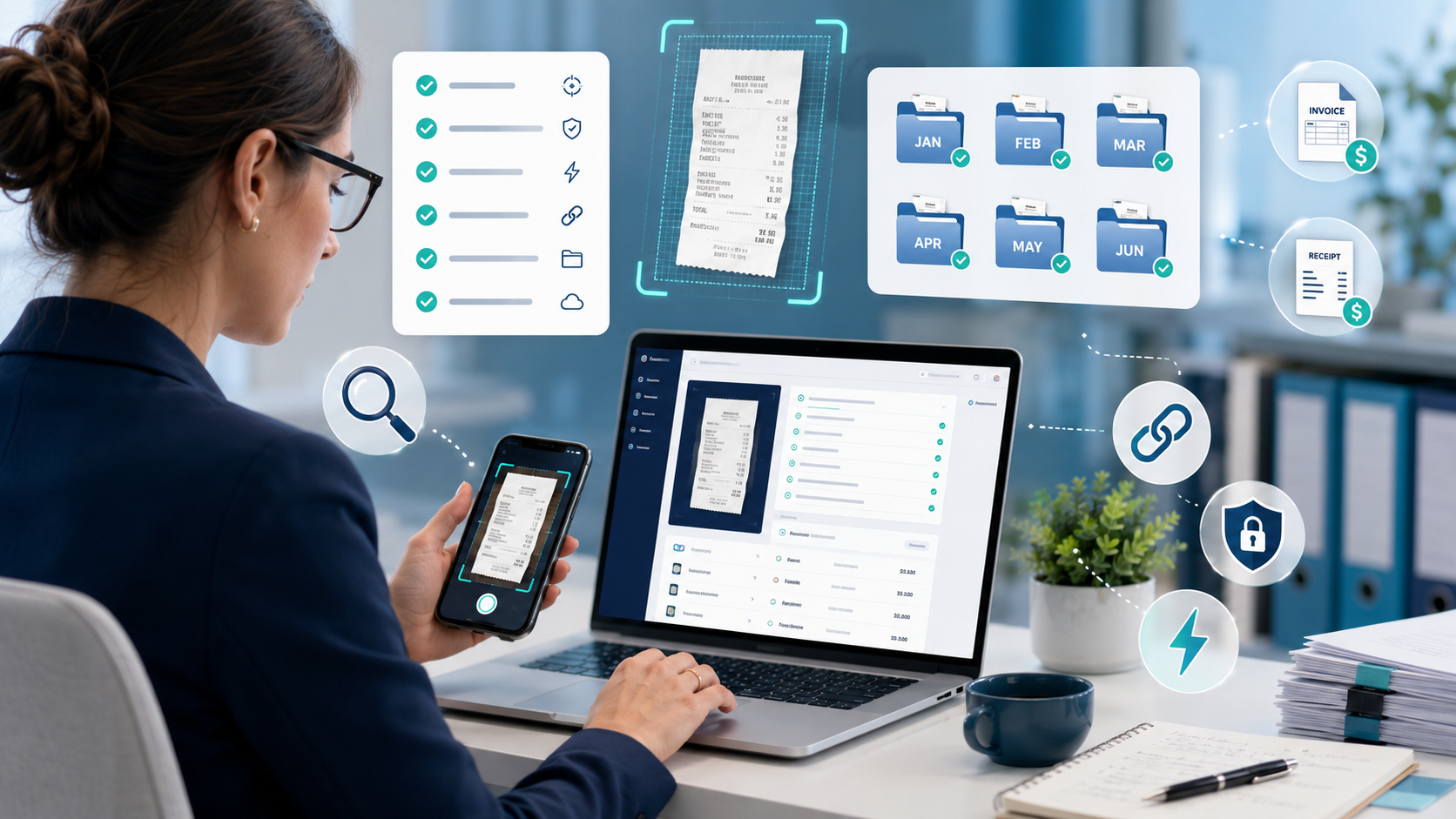
Receipt Scanner for Bookkeepers: A 10-Point Checklist Before You Choose
7 min read
Most receipt scanners are built for one person tracking their own expenses. Bookkeepers have a different problem — you're managing receipts across 10, 30, or 100 clients at once, and a tool that works for one person rarely holds up at that scale.
Before choosing a receipt scanner for your firm, run it through this checklist.
(For the full breakdown of how to actually fix client receipt collection, see how to collect receipts from clients without chasing them every month.)
1. Client-Specific Intake
Can each client send documents to their own dedicated address or link, or does everything land in one shared inbox? Shared inboxes mean someone manually figures out which client each file belongs to — every time, for every receipt.
2. Document Sorting
Does the tool sort receipts, bills, and invoices by type and by month automatically, or do you open every file yourself to find out what it is and where it goes?
3. Extraction Fields
Check what it actually pulls: vendor, date, amount, tax, payment method, line items. For bills and invoices, you also need due date, terms, and bill number. If a tool only grabs vendor and amount, you're still doing half the data entry by hand.
4. Review Before Posting
No tool should push unreviewed data straight into QuickBooks. Bookkeeping needs judgment — a $300 hardware store charge could be materials, repairs, or job costs, and the receipt alone won't tell you which. Look for a clear review step before anything syncs.
5. Multi-Client Scale
The real test: will this still work cleanly when you add 20 more clients? Look for client-level folders, status tracking, and review queues — not just a single inbox that gets messier as you grow.
6. Missing Receipt Tracking
Generic reminders ("please send missing receipts") don't get acted on. A good tool should help you generate specific ones — naming the vendor and date — so clients know exactly what to find.
7. QuickBooks Workflow Fit
Confirm it fits how you actually close books: can reviewed data sync cleanly, can source documents stay attached, does it reduce manual entry rather than just relocating it?
8. Pricing Model
Per-client or per-document pricing can get expensive fast as your book of business grows. Check whether the pricing model still makes sense at your firm's actual client count — not just for a single test client.
9. How Tools Compare
Different tools fit different needs:
- QuickBooks native capture — fine for very low receipt volume, one business.
- Dext — mature capture workflow, widely used in accounting firms.
- Hubdoc — strongest at document storage and collection.
- AutoEntry — built around reducing manual data entry specifically.
- Expensify — built for employee expense reports, not bookkeeping intake.
- ScribeosAI — built around the full workflow: client-specific intake, automatic sorting, extraction, review, and QuickBooks handoff. Setup is lighter too — there's no chart-of-accounts mapping or supplier-rule configuration required before extraction is useful.
For a full head-to-head, see Dext vs Hubdoc vs AutoEntry or the best receipt scanner for QuickBooks in 2026.
10. The One Question That Matters Most
Will this tool make month-end easier, or will it just move the same manual work somewhere else?
That's the real test — not how good the scanning looks in a demo, but whether it changes what your actual month-end looks like.
FAQ
What is the best receipt scanner for bookkeepers?
The best option supports client-specific intake, automatic document sorting, extraction, and review before QuickBooks — not just photo capture.
Is QuickBooks's built-in receipt capture enough?
For one business with low volume, often yes. For bookkeepers managing multiple clients, it usually isn't enough on its own.
Should a receipt scanner sync straight to QuickBooks without review?
No. Review before posting should always be part of the workflow.