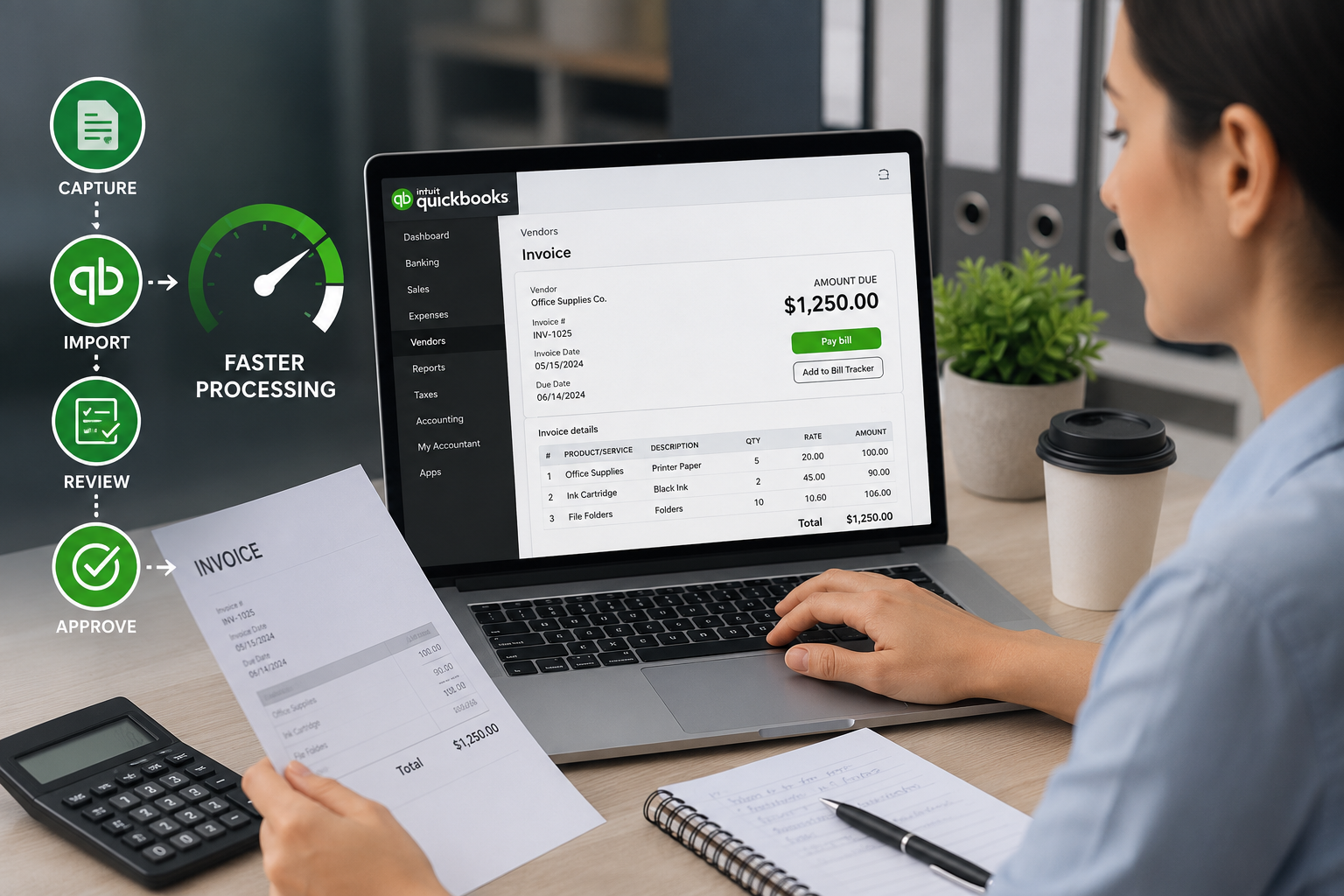
QuickBooks Invoice Processing: How to Handle Vendor Invoices Faster
9 min read
QuickBooks invoice processing can get messy fast.
Vendor invoices arrive by email, PDF, paper, portal download, shared drive, and sometimes even as screenshots from clients. Some invoices need to be entered as bills. Some have already been paid. Some are duplicates. Some are missing due dates, purchase context, or approval details.
By the time the bookkeeper or accounting team starts working in QuickBooks, the real work has often already begun: finding the invoice, identifying the vendor, checking whether it is a bill or receipt, reviewing the amount, and deciding what needs to happen next.
That is why invoice processing is not just a data entry problem.
It is a document workflow problem.
For bookkeepers, accountants, CPA firms, and QuickBooks users, the goal is to collect vendor invoices in one place, extract the right details, review them, and prepare clean information for QuickBooks without creating month-end chaos.
This guide explains how to handle vendor invoices faster and build a more reliable QuickBooks invoice processing workflow.
ScribeosAI helps bookkeepers collect receipts, invoices, bills, and client documents in one place. Each client gets a dedicated intake email, documents are sorted by type and month, key details are extracted, and reviewed data is prepared for QuickBooks — without the usual monthly chasing.
What Is QuickBooks Invoice Processing?
QuickBooks invoice processing is the workflow for collecting, reviewing, entering, and managing vendor invoices or bills in QuickBooks.
Depending on the business, invoice processing may include:
- Collecting vendor invoices
- Reviewing invoice details
- Checking vendor name, invoice date, due date, and amount
- Identifying duplicates
- Entering bills into QuickBooks
- Matching invoices to payments
- Attaching source documents
- Reviewing tax, categories, classes, customers, or projects
- Preparing invoices for approval or payment
For small businesses, this may be simple.
For bookkeepers managing multiple clients, it can become one of the most time-consuming parts of the monthly workflow.
Why Vendor Invoice Processing Gets Messy
Vendor invoices do not always arrive in one clean format.
They may come from:
- Email attachments
- Vendor portals
- Paper invoices
- PDF downloads
- Client uploads
- Scanned documents
- Supplier statements
- Recurring subscription invoices
- Photos or screenshots
This creates several problems.
The bookkeeper may not know whether the invoice has already been paid. The same vendor may send multiple invoices in one month. A client may forward an invoice without context. A vendor portal may require login access. A duplicate invoice may be entered twice if the team is not careful.
The issue is not only entering invoices into QuickBooks. The bigger issue is organizing the documents before they reach QuickBooks.
Invoice processing usually breaks down for the same reason receipt collection does: documents arrive late, scattered, and without enough context. That broader document workflow is covered in why document collection is the hardest part of bookkeeping.
Receipts vs Bills vs Vendor Invoices
One of the first steps in invoice processing is separating document types.
A receipt usually supports an expense that has already been paid.
A bill usually represents money owed to a vendor.
A vendor invoice may need to be reviewed, entered, approved, paid, or matched to a later payment.
If receipts, bills, and invoices all land in one folder, the bookkeeper still has to sort everything manually.
That slows the process down.
A better workflow separates:
- Receipts
- Bills
- Vendor invoices
- Statements
- Credit memos
- Supporting documents
This helps the team decide what needs to be entered, matched, reviewed, paid, or attached in QuickBooks.
Step 1: Create One Invoice Intake Process
The first step is to stop letting invoices arrive everywhere.
If vendor invoices come through email, text, shared drives, paper folders, and client uploads, someone has to collect and organize everything manually.
A better process is to create one approved intake method.
That could be:
- A dedicated email address
- A client-specific upload link
- A document portal
- A shared invoice inbox
- A tool like ScribeosAI
With ScribeosAI, each client can have a unique intake email address. That means vendor invoices, bills, receipts, and supporting documents for each client go directly into that client's processing folder.
This avoids the confusion of mixed client documents sitting in one shared inbox.
For firms managing multiple clients, client-specific intake is especially important.
Step 2: Sort Invoices by Type and Month
Once invoices are collected, they need to be organized.
At minimum, bookkeepers should know:
- Which client the invoice belongs to
- What type of document it is
- Which month it belongs to
- Whether it has been reviewed
- Whether it is ready for QuickBooks
- Whether it may be a duplicate
ScribeosAI can classify documents by type and organize them into month-specific folders with up to 92% accuracy in current workflows. This helps bookkeepers avoid the manual work of opening every file, identifying whether it is a receipt, bill, invoice, or support document, and moving it into the right place.
The bookkeeper still reviews the output, but the first layer of sorting becomes faster.
That matters when a firm is handling dozens or hundreds of client documents each month.
Step 3: Extract Key Invoice Details
Invoice processing should reduce manual data entry.
A good workflow should extract important fields such as:
- Vendor name
- Invoice date
- Due date
- Invoice number
- Subtotal
- Tax
- Total amount
- Line items, when needed
- Payment terms
- Currency
- Customer, class, location, or project notes
For QuickBooks users, these details matter because they affect how the bill or expense should be entered and reviewed.
Extraction helps, but it should not be treated as perfect.
Poor scans, unusual invoice formats, faded PDFs, handwritten notes, and complex line items can still require review.
The goal is not to remove the bookkeeper. The goal is to reduce repetitive typing and make invoice review faster.
Step 4: Review Before Entering Into QuickBooks
Bookkeepers should avoid pushing unreviewed invoice data into QuickBooks.
Before entering or syncing invoice details, review:
- Vendor name
- Invoice number
- Date and due date
- Total amount
- Sales tax
- Category or account
- Duplicate status
- Payment status
- Approval status
- Whether the invoice should be entered as a bill or matched to an existing payment
This review step protects the quality of the books.
For example, a vendor invoice may look unpaid, but the client may have already paid it by credit card. Another invoice may be a duplicate copy of one that was already entered. A statement may look like an invoice but may only summarize prior charges.
A review workflow helps catch these issues before they create cleanup work in QuickBooks.
Step 5: Watch for Duplicate Vendor Invoices
Duplicate invoices are a common problem.
They happen when:
- A vendor sends the same invoice twice
- A client forwards an invoice that was already uploaded
- A PDF and a photo version both exist
- A reminder invoice is mistaken for a new invoice
- A statement is confused with an invoice
Duplicate bills can cause overpayment, incorrect liabilities, and messy vendor records.
Before entering invoices into QuickBooks, check:
- Vendor name
- Invoice number
- Invoice date
- Amount
- Due date
- Payment status
- Existing records in QuickBooks
A good invoice processing workflow should make duplicates easier to spot before the data reaches QuickBooks.
Step 6: Attach Source Documents
Invoice processing is not complete unless the source document can be found later.
When possible, attach or retain the invoice with the related QuickBooks record.
This helps with:
- Vendor questions
- Client review
- Tax preparation
- Audit support
- Payment approval
- Cleanup work
- Month-end close
A transaction without a source document may be harder to explain later.
This is why invoice processing and QuickBooks document management should work together.
Step 7: Build a Weekly Invoice Review Habit
Waiting until month-end creates unnecessary pressure.
A better process is weekly invoice review.
Each week, the bookkeeping team can:
- Review newly submitted invoices
- Identify missing documents
- Check duplicates
- Confirm due dates
- Prepare bills for QuickBooks
- Ask clients for context while the transaction is still fresh
This prevents the month-end close from becoming a document cleanup project.
The same principle applies to receipts. If clients are also slow to submit receipts, this guide on collecting receipts from clients explains how to reduce the monthly chasing cycle.
Best Tools for QuickBooks Invoice Processing
There are several tools that can help with invoice processing for QuickBooks.
QuickBooks itself may be enough for smaller businesses with low invoice volume.
Dext is often used for receipt and invoice capture.
Hubdoc is often used for document collection and storage.
AutoEntry is often used to reduce manual data entry from receipts, invoices, bills, and statements.
ScribeosAI is designed for bookkeepers, accountants, CPA firms, and QuickBooks users who need a workflow for collecting, sorting, extracting, reviewing, and preparing receipts, invoices, and bills for QuickBooks.
These related guides may help if you are deciding how receipts, invoices, and source documents should flow into QuickBooks:
- QuickBooks receipt scanner
- Receipt scanner for bookkeepers
- Dext alternative
- Hubdoc alternative
- Dext vs Hubdoc
- Dext vs Hubdoc vs AutoEntry
How ScribeosAI Helps With Invoice Processing
ScribeosAI helps bookkeepers and QuickBooks users manage the document workflow before data reaches QuickBooks.
It helps teams:
- Give each client a unique intake email address
- Route vendor invoices into the right client folder
- Collect bills, receipts, invoices, and supporting documents in one place
- Classify documents by type and month
- Extract key invoice details
- Review before posting
- Prepare clean data for QuickBooks
- Reduce manual sorting and client follow-up
This matters because invoice processing is not only about capturing data from a PDF.
It is about getting the right document into the right place, reviewing it properly, and making sure QuickBooks receives clean information.
FAQ
What is QuickBooks invoice processing?
QuickBooks invoice processing is the workflow for collecting, reviewing, entering, and managing vendor invoices or bills in QuickBooks. It may include invoice collection, data extraction, duplicate checks, approval, bill entry, and source document attachment.
How can I process vendor invoices faster in QuickBooks?
You can process vendor invoices faster by using one intake process, sorting invoices by client and month, extracting key fields, reviewing before posting, checking duplicates, and attaching source documents to the right QuickBooks records.
Can QuickBooks process invoices automatically?
QuickBooks has features that can help with bills, expenses, and document attachments, but many bookkeepers still need a workflow before data reaches QuickBooks. Tools like ScribeosAI can help collect, sort, extract, and review documents before QuickBooks entry.
What is the difference between a receipt and a vendor invoice?
A receipt usually supports a payment that already happened. A vendor invoice or bill may represent money owed and may need to be entered, reviewed, approved, and paid.
Can ScribeosAI help with invoice processing for QuickBooks?
Yes. ScribeosAI helps bookkeepers, accountants, CPA firms, and QuickBooks users collect vendor invoices, organize them by client and month, extract key details, review the data, and prepare clean information for QuickBooks.
Final Thoughts
QuickBooks invoice processing is easier when the document workflow is clean.
If vendor invoices are scattered across email, portals, paper folders, and client messages, the bookkeeper spends too much time finding and sorting documents before the real accounting work begins.
A better process starts with one intake workflow, client-specific routing, document sorting, invoice extraction, review, duplicate checks, and clean QuickBooks handoff.
ScribeosAI helps bookkeepers and QuickBooks users manage that workflow so vendor invoices, bills, receipts, and supporting documents are easier to collect, review, and prepare for QuickBooks.